The quick part is really short. I tested it only in Fedora 7 with Gnome, but I suppose that the solution works in other contexts quite well. With Gnome, install the Keyboard Indicator applet. Go to Keyboard Preferences and choose the Layouts panel. Press Add… and select from Greece the polytonic keyboard. Also check the “Separate group for each window option”. From Layout Options choose a Compose key position. I have selected Right Alt. Select the behavior of Group Shift/Lock. I chose Left Win-key changes group (a safe choice - I am under GNU/Linux!). I have also selected from “Use keyboard LED to show alternative group” the ScrollLock option. That's all.
As I have explained elsewhere I do not like to write directly Unicode for Ancient Greek. I simply do not see well all the details on the display. I prefer Betacode and its conversion into Unicode.
There are however situations in which you need to get out of your favorite editor (in my case, Vim) and write a few words in Ancient Greek without converting them from Betacode.
A simple example is the Tesseract Box Editor. It is very tedious to change indirectly the Greek letters in the boxes.
Another example would be a search in a huge list with Ancient Greek words. Federico Boschetti has generated such a list for Aspell (see the note on spell checking texts in Ancient Greek).
Yet another example would be a search in a djvu file with Ancient Greek text behind the images.
Thus, for many quick operations, you need an Ancient Greek keyboard.
Ancient Greek used a rather complex system of diacritical marks. The first computers were unable to handle it. Now, a system like Fedora 7 or any similar GNU/Linux distribution is able to use Unicode. All the Ancient Greek symbols are there. The problem is that, with a limited keyboard, it is not that easy to include them in your texts.
If you take a look at the Wikipedia article about the Greek alphabet you are going to understand how the standard keyboard for Ancient Greek works and which are its limits. There are two possibilities to work with Unicode for Ancient Greek: to use composed characters and precomposed characters.
When you use composed characters you press a series of keys and you get your symbol on the display or on paper. For this they are quite good.
The advantage of the precomposed characters is that they attach a unique Unicode number to the Greek symbol. But they are far too many for the keys on the keyboard.
The quick-and-dirty approach they I advocate is a keyboard combining precomposed and composed characters.
For technical details concerning the X Window keyboard see the note on the Romanian keyboard.
You should assume full responsibility for any operations with the files provided in the download section. I also assume that you DO NOT WORK under a system with Greek as the default language. DO NOT USE THE KEYBOARD discussed here in such a system!
The keyboard is for a system with English as the default language. In my case, I use US English as the default keyboard. The keyboard for my own language, Romanian, is not the default keyboard. I enable only when I need it a third keyboard (for example, a keyboard for Ancient Greek).
All good intentions might lead to hell. In the case of the keyboard, this might mean that you loose the control of the computer. I call the file for the Ancient Greek keyboard gr. This is the official name of the file in
/usr/share/X11/xkb/symbols
The above location is valid in Fedora 7. There are other locations in other GNU/Linux distributions.
Before replacing the original gr file you must back-up it! In the Gnome Keyboard Indicator, you must first remove the old Greek keyboard. Of course, it must not be the default! Copy the modified gr file in the symbols folder. Reopen the Gnome Keyboard Indicator and just choose Greece (there is only one option now - the others are dead). You strongly need a key for the Group Shift! The keyboard has insufficient Latin letters for the operational control of the computer.
I stress once more that the keyboard cannot be used as the default keyboard. It can be the current keyboard only in an editor! As people say, you must know what you are doing when you use it. (See also the section ■ on accidents.)
The basic Greek letters are obtained according to Betacode conventions.
I will use as names for the keys on the physical keyboard A-key, B-key, C-key and so on. This makes sense on my mini-US keyboard. I just use the signs as seen on the physical keys.
The AltGr is (on my keyboard) the Alt-key on the right. The left Alt is kept for use with menus in editors. AltGr+J-key means that you keep pressed the Alt key on the right while you press the J-key. Shift+AltGr+J-key means that you keep pressed both the Shift-key and the Alt-key on the right, while you press the J-key.
For the Greek letters, as far as possible, I use the X Window conventions and I call them Greek_alpha, Greek_beta, Greek_gamma and so on.
Greek_theta is obtained when you press the Q-key. Press Shift+Q-key for Greek_THETA (uppercase letter theta).
Greek_chi is obtained when you press the X-key.
Greek_xi is obtained when you press the C-key.
Greek_phi is on the F-key and the other version of lower-case phi is obtained when you press Shift+J (keep the Shift-key pressed while pressing the J-key).
Greek_sigma in its final form is on the J-key.
An alternative version of sigma (as used by Betts and Henry) is obtained with Shift+AltGr+9-key.
The digamma is on AltGr+hyphen-key and Shift+AltGr+hyphen-key (on the numeric row).
In the case of the other basic letters the keyboard follows the usual conventions.
Greek_alpha with precombined acute accent is obtained when you press AltGr+A-key.
Greek_alpha with precombined grave accent is obtained when you press Shift+AltGr+A-key.
The keyboard follows - for the acute and grave accents - the same strategy for all the vowels.
Greek_alpha with precombined circumflex (perispomeni) is obtained when you press Shift+AltGr+Q-key.
Greek_eta with precombined circumflex is on AltGr+G-key.
Greek_iota with precombined circumflex is on AltGr+C-key.
Greek_upsilon with precombined circumflex is on Shift+AltGr+G-key.
Greek_omega with precombined circumflex is on AltGr+Q-key.
Greek_alpha with precombined comma above (psili or spiritus lenis) is obtained when you press AltGr+S-key.
Greek_alpha with precombined reversed comma above (dasia or spiritus asper) is obtained when you press Shift+AltGr+S-key.
For comma above and reversed comma above (spirits) you have to press:for epsilon AltGr+R-key and Shift+AltGr+R-key; for eta AltGr+N-key and Shift+AltGr+N-key; for iota AltGr+J-key and Shift+AltGr+J-key; for omicron AltGr+P-key and Shift+AltGr+P-key; for upsilon AltGr+Y-key and Shift+AltGr+Y-key; for omega AltGr+D-key and Shift+AltGr+D-key.
Greek_rho with comma above is on Shift+AltGr+0-key (the key with the right parenthesis on it).
Greek_rho with reversed comma above is on Shift+AltGr+=-key (also on the numeric row).
The combinations of spirits and acute accent are on the keyboard. You find them as follows:for alpha AltGr+Z-key and Shift+AltGr+Z-key; for epsilon AltGr+T-key and Shift+AltGr+T-key; for eta AltGr+B-key and Shift+AltGr+B-key; for iota AltGr+K-key and Shift+AltGr+K-key; for omicron AltGr+L-key and Shift+AltGr+L-key; for upsilon AltGr+hyphen-key and Shift+AltGr+hyphen-key; for omega AltGr+F-key and Shift+AltGr+F-key.
You obtain iota subscript precombined with:alpha on AltGr+X-key; eta on Shift+AltGr+X-key; omega on Shift+AltGr+C-key.
You obtain a diaeresis (dialytika) above:iota with AltGr+M-key; upsilon with Shift+AltGr+M-key.
For reasons that I will explain later, the preformatted combinations of spirits, accents and iota subscript, for alpha, eta and omega, are obtained with AltGr and Shift+AltGr on the numeric row (from left to the 8-key).
As I have already explained, using a Unicode font, it is possible to combine letters and diacritics.
How are these combinations defined? You have to look for a file named “Compose”. Despite the name, for many languages, this might be in the folder
/usr/share/X11/locale/en_US.UTF-8
This is the case for the present keyboard when it is used on a system with US English. It should not be used on other systems! And it should not be the default keyboard!
I did not make any changes in en_US.UTF-8. I think for good reasons. Any future upgrade of the system will probably reverse the changes. Replacing the keyboard file in the symbols folder is enough.
The description which follows uses my experience on Fedora 7. It might not fit the results on other systems. Experiment with care!
Please also note a change in the notation. A-key*backslash-key means that after pressing the A-key you press the backslash-key. The star stands for “composed with”.
Now, how you get diacritics on the letters? For all the combinations, press first the key for the (diacritics-free) letter. Then follow (as much as possible) the order in the Betacode, for accents, spirits and iota subscript
For the acute and grave accents, locate the semicolon-key and the apostrophe-key on the right side of the keyboard. On my keyboard, they are next to the L-key.
A-key*semicolon-key will generate on the display (and paper) an alpha with an acute accent.
A-key*apostrophe-key will generate on the display (and paper) an alpha with a grave accent.
The circumflex is on Shift+semicolon-key (above the acute, so to speak).
A-key*Shift+semicolon-key will generate on the display (and paper) an alpha with a circumflex accent.
For the spirits, locate the square brackets. They remind me of the parentheses used for spirits in Betacode. They also have a convenient location on the keyboard. You may also use AltGr+9-key and AltGr+0-key, but I find their location inconvenient.
A-key*[-key will generate on the display (and paper) an alpha with reversed comma above (dasia).
A-key*]-key will generate on the display (and paper) an alpha with comma above (psili).
For the iota subscript use the backslash-key.
A-key*backslash-key will generate on the display (and paper) an alpha with the small iota under it.
For the diaeresis use Shift+backslash-key.
I-key*Shift+backslash-key will generate on the display (and paper) an iota with diaeresis.
You can put a macron or a breve on a vowel with Shift+[-key and Shift+]-key.
Now, you can combine two diacritics on a letter. We will take omega as an example.
W-key*[-key*apostrophe-key will generate omega with reversed comma above and grave. Note that the corresponding precombined character is not included in the keyboard.
The order of the above combination should be: letter, spirit, accent.
In the case of three diacritical marks, on my system, only the composition for upper-case letters works.
Shift+W-key*]-key*apostrophe-key*backslash-key will generate upper-case omega with comma above and grave accent plus iota subscript.
The absent combinations are included as precomposed characters.
Do not let yourself fooled by what you see on the display! These are just combinations. A precombined Unicode character might look the same on the screen as a combination, but the computer sees different numbers.
I wrote a script for my favorite editor (Vim), which transforms composed characters into precomposed characters. You'll find the script in the downloads ■ section.
Now, write - with Vim - a few composed characters in a simple text file. Note the size of the file. Run the script and look at the size of the file. The file has shrunken!
The problem is not just the size of the file. Sometimes you must look in a file for precomposed characters. In this case, the composition does not help.
In Greek you put a semicolon at the end of questions. Thus, if you press Shift+slash-key you get a semicolon (the Greek version - with a different Unicode number). The Vim script converts, however, any English semicolon into a Greek one.
Shift+AltGr+semicolon-key generates a raised dot (the Greek colon).
The Greek koronis mark is generated by the grave-key (the first key on the numeric row). The Unicode hex number of koronis is 1fbd. Koronis is used when two words contract. It may cause problems when we check the spelling of Ancient Greek texts.
Koronis is replaced in many situations with an elision mark. A Greek elision mark is on the AltGr+equal-key. An alternative elision mark is obtained with Shift+apostrophe-key. This is a sign used in many e-texts.
Shift+comma-key and Shift+period-key gets the standard Greek quotation marks. For alternative (primary) quotation marks use AltGr+comma-key and AltGr+period-key. For alternative (secondary) quotation marks use AltGr+slash-key and Shift+AltGr+slash-key.
The comma, the period and the slash are left untouched. They have the value from the US English keyboard.
Now, you also can recuperate some of the symbols from the US-English keyboard.
AltGr+[-key, Shift+AltGr+[-key, AltGr+]-key and Shift+AltGr+]-key get back the brackets.
AltGr+backslash-key and Shift+AltGr+backslash-key recuperate the backslash and the vertical bar.
Shift+AltGr+comma-key and Shift+AltGr+period-key get back the angle brackets (the “less” and the “greater”).
Most of the numeric keys (used without Shift) have their nominal values from the US English keyboard. The exceptions are the first and the last keys: the grave-key - used for koronis - and the equal-key which is used for +.
Shift plus the keys on the numeric row generates the nominal values of the keys, with five exceptions: Shift+2-key, Shift+3-key and Shift+4-key generate b c d; Shift+hyphen-key and Shift+equal-key e f. These are letters used as numbers (in hex numbers). As we will see in what follows they are needed for making the keyboard capable to insert any Unicode character (with the Vim editor).
The v-key plays a special role. The v-key generates the Latin letter v. Shift+v-key generates the Latin letter n. AltGr+v-key gets the Latin a (also used in hex numbers). Shift+AltGr+v-key brings in the Latin letter u.
I use the v-key in the Vim editor. The Vim editor is a modal editor. Esc brings the editor in normal mode and the i switches to insert mode. The n is useful in searches.
In Vim, Ctrl-v (Ctrl pressed at the same time with the v-key) in insert mode, is used for the insertion of any Unicode character. For example,
Ctrl-vu0066 (Ctrl-v followed by u and 0066)
inserts the Latin letter a.
The unicode numbers are hex numbers, so you need the Latin letters a b c d e f. The letters b c d are on Shift+2-key, Shift+3-key and Shift+4-key. The e is on Shift+hyphen-key and f is on Shift+equal-key (the last key on the numerical row). The letter f plays a special role (as a hex number - corresponding to the decimal 15) because the precomposed polytonic Greek characters are on the 1f00 to 1fff bloc in the Unicode table.
With this “window” on the v-key you can insert any Unicode symbol. (For a practical application see the note on Aspell and Ancient Greek.)
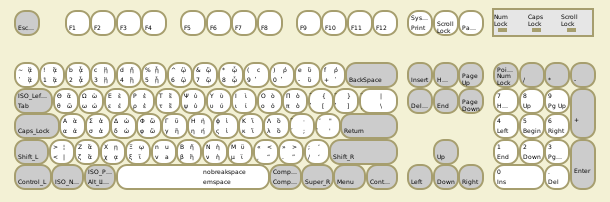
But how can one remember all these keys? I draw on a sheet of paper a map of the keyboard. On it there are four rows of keys. On each of the four corners of a key there are symbols: the left-down is obtained when the key is pressed; the left-up is generated with Shift; the right-down with AltGr and the right-up with Shift+AltGr (see also the image ■). I keep the sheet of paper attached next to the display of the computer. I look to it when I need to know how to insert a symbol.
The worst accident I know of is when you shutdown the computer and then you are unable to type your password, when you restart it. It sounds funny, but it isn't when it happens to you. The keyboard might be the cause.
Keep around a rescue CD! GNU/Linux distributions offer some kind of rescue from the CD.
Another solution is to have a Knoppix live CD. Test to see if it works with your hardware and keep it in a safe place. This CD is able to start a system that connects itself to the Internet. It is also able to explore and back-up your hard-disk.
You might also use - for experiments - a separate system unit. On this unit, you should install at least two distributions. For example, you can install Fedora and Ubuntu. From Fedora you can see Ubuntu and vice versa.
One way or another, you should be able to replace the modified gr file with the original gr file. On the Internet, you should also be able to find documentation concerning the xkb configuration (the keyboards for the X Window system). You will be able to restore the system and solve the problems caused by the accident.
On the other hand, if you are somehow stuck into the modified Greek keyboard, but you can still call Vim and use the mouse, in X Window, you can use the Ctrl-v to generate any text (see above ■) and paste it where you need it. I would not, however, rely too much on this method. It can be useful to generate some password or a short command, but in that situation you should also be able to change the keyboard from the Keyboard Indicator.
All files for download are under GPL. The files are distributed without any expressed or implied warranty. Back-up any original files and read the section ■ on accidents before using the files.
I will start with a general observation: you must have root privileges in order to copy the gr file to its proper location. Pay also attention to the reading rights: gr must be readable by group and others (not only by root). The use of the GNU Midnight Commander File Manager (with root privileges) for these operations seems to me the most reasonable choice.
If you want to keep the official Greek keyboard, you may use a different name for the gr file. You have also to change the line
name[Group1]="Greece";
in the gr file. For example, you may use la (instead of gr) and Laos (instead of Greece) - of course, if you do not use the Laos keyboard. Anyway, choose a keyboard with only one option. The name must make sense in the symbols folder (if you do not want to make further changes in the xkb configuration). Be very careful! Some of the keyboards are used by other keyboards! And, of course, back-up first the keyboard that you are going to change!
You do not have the Laos or other keyboard? Install support for the respective language!

The archive includes the gr keyboard file and the Vim script for converting composed Unicode characters into precomposed Unicode characters. Do not use them without reading this note ■!
The Greek keyboard has mainly Greek letters on it. However, in Vim, you can use Ctrl-v to insert any Unicode character■.