In these notes I describe the experience with a printserver in a mixed network. Specifically, the network of our department has a GNU/Linux server and a number of computers, mostly with Windows.
Now, let us say that in one of the offices there is Laser Jet printer without a network interface. A simple solution for the connection of the printer to the network is to use a printserver.
There is a distinction between the local network and the Internet. The local network is connected to the Internet through a computer used as a gateway to the Internet. This computer has two network interfaces: one for the communication with the Internet. The other for the local network; a UTP cable connects this interface with a switch. The computers in the local network use this switch. The printserver also is connected to the switch.
This is a simplified description. It is however realistic if you have a small local network. The addresses on this network are local; they have the form: 192.168.x.y, where x is usually a small number (a one or two-digit number) and y is a number from 1 to 255. It is a good idea to use an x which is NOT 0. Many devices, for wireless connection or printservers have from the producer an address which is 192.168.0.1.
Let us say that the printserver comes with the address 192.168.0.1. You have to change it to some convenient address, let us say 192.168.x.5, or use DHCP. The initial address is useful because, from your browser, pointing to that address you can manage the printserver.
What other changes to the printserver's configuration make sense? Have you any Mac in your network? No. Then disable Mac Rendezvous. Do you really need UPnP? This is useful for the Windows computers. When UPnP is enabled the printserver emits periodically a UDP signal (a 68B package for example). You may check, from GNU/Linux, with Ethereal and see the UDP signal. But I manged to see on Network Neighborhood the printserver despite the disabled UPnP.
I have also enabled a second HTTP port. The number 631 for the port makes sense. Use nmap in order to identify the open ports on the printserver.
It makes sense to give a name to the printserver. And a name to the printer attached to the printserver. Otherwise they have names which are difficult to remember. For example, I named the printer LJ (acronym of LaserJet). You may use similarly MP for the matrix printer and DJ for the DeskJet. These names are easy to remember.
In practice, it was easy to set-up the Windows computers. Identify the printer on Network Neighborhood, click and then answer the questions. Alternatively, use Add printer from Control panel. From Control panel you have to pay attention to a sequence such as\\Cats\LJ, where “Cats” is the name of the printserver and “LJ” the name of the printer.
It took some time until I discovered a solution for printing through the printserver from computers with Fedora GNU/Linux.
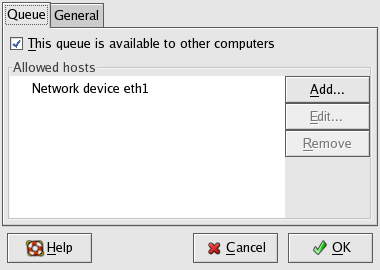
In Fedora, add a printer in the usual way. It seems however that you have to share this new printer. See the Figure “Printer sharing”; the figure shows how eth1 has access to the computer. In this case, eth1 is the interface with the local network. Anyway, check to see if you really need this.
Basically, what seems to work (at least with the printserver which I have tested) is the Unix type of queue. See Figure “Network printer queue type”. Put an adequate number in place of x an y. Put the name of your printer in place of LJ.
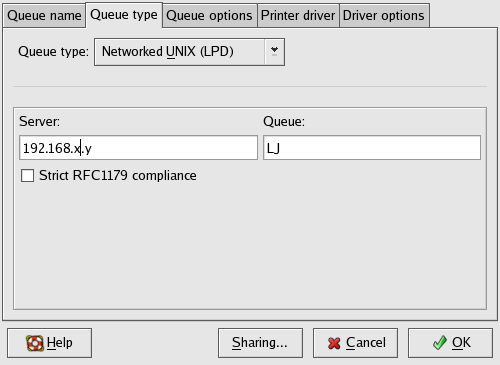
This solution is very simple. It is easy to implement. The other possible solutions might be to use ipp or samba under GNU/Linux.